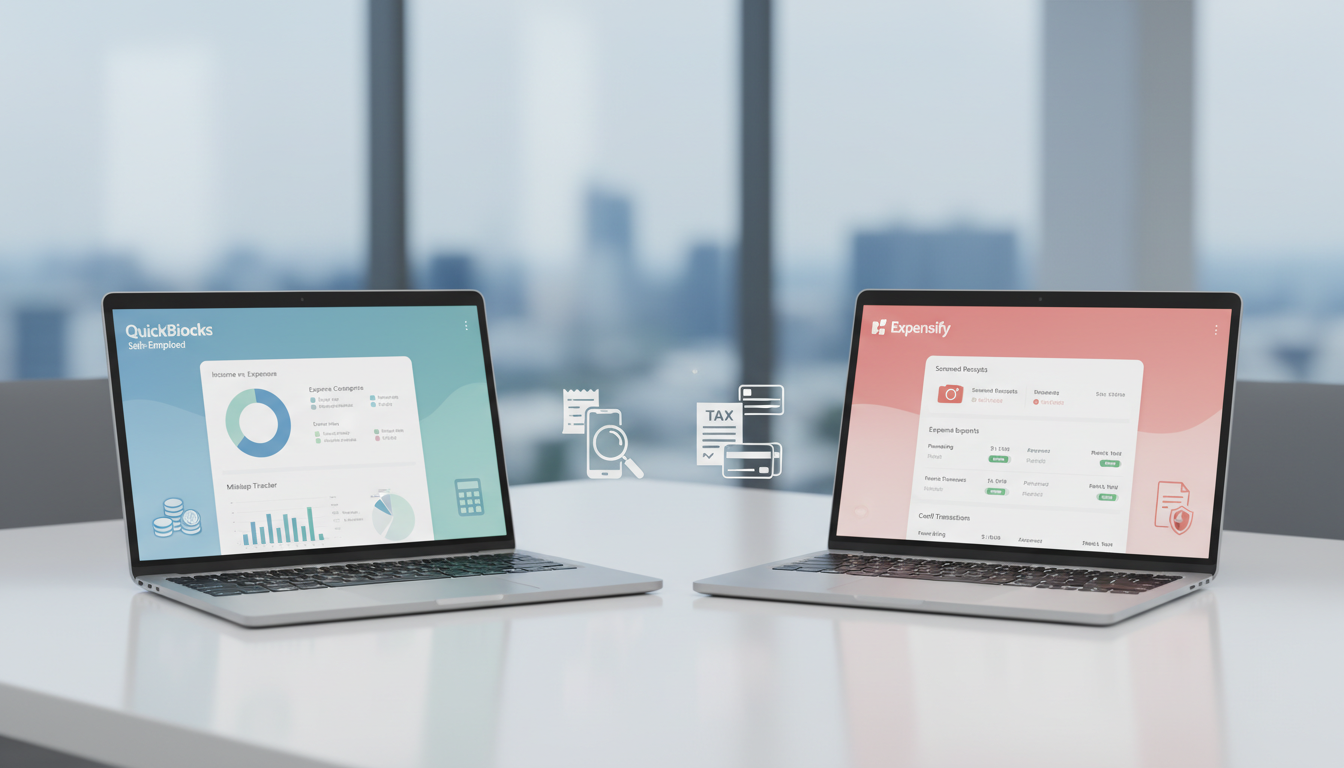
You have probably seen the advice a hundred times: "Get QuickBooks" or "Use Expensify to track your expenses." It is the default recommendation on every freelancer forum, every tax preparation guide, and every "best tools for freelancers" listicle on the internet.
But here is the question nobody asks: Do you actually need a full accounting suite to classify 200 bank transactions once a year?
If you are a solo freelancer, independent contractor, or gig worker filing a Schedule C, the honest answer is almost certainly no. QuickBooks and Expensify are powerful tools built for a very specific type of business. When that business is just you, your laptop, and a checking account, those tools become the software equivalent of renting a moving truck to carry a backpack.
This article compares QuickBooks and Expensify from the perspective of a solo freelancer, exposes the hidden costs of subscription-based accounting software, and explains why a growing number of 1099 workers are switching to one-time payment expense tools in 2026.
Disclaimer: This article is for informational purposes only and does not constitute tax, legal, or financial advice. Consult a qualified CPA or tax attorney for guidance specific to your situation.
QuickBooks vs Expensify: The Industry Standard That Was Not Built for You
QuickBooks has been the default small business accounting software for decades. It handles invoicing, payroll, inventory management, double-entry bookkeeping, financial reporting, and tax preparation for businesses with employees and complex operations.
What QuickBooks Does Well
QuickBooks excels at managing multi-layered business finances. If you run a business with employees, vendor payments, accounts receivable, and inventory tracking, QuickBooks provides an integrated platform that ties everything together. The bank feed feature automatically imports transactions, and the reporting tools generate profit-and-loss statements that CPAs love.
Why It Is Overkill for Solo Freelancers
Here is the problem: as a solo freelancer, you do not have employees to pay. You do not manage inventory. You do not need accounts receivable workflows or multi-user access controls. You need exactly one thing: to take your bank and credit card transactions and sort them into the correct IRS Schedule C categories before tax season. And if you are dealing with gray-area deductions like mixed-use expenses, you need a tool that understands the nuances, not one that buries them under layers of enterprise features.
QuickBooks Self-Employed, the tier marketed specifically to freelancers, still requires you to connect your bank account, learn the interface, categorize transactions one by one throughout the year, and manage the system on an ongoing basis. The learning curve is steep for someone who just wants to hand their CPA a clean expense report once a year.
Pricing reality: QuickBooks Self-Employed costs $25 per month ($300 per year as of 2025-2026). That is $300 per year for a tool you realistically need for two weeks during tax season. Over three years, you have spent $900 on software that sat idle for 97% of the time. If you claim a home office deduction, the irony is that QuickBooks charges you monthly to calculate a deduction you only need to figure once a year.
QuickBooks vs Expensify: Expensify - Enterprise Expense Management in a Freelancer's Clothing
Expensify built its reputation on corporate expense reporting. It is designed for companies where employees submit receipts, managers approve them through multi-step workflows, and finance teams reconcile everything against corporate credit cards.
What Expensify Does Well
For teams, Expensify is genuinely useful. SmartScan reads receipt photos, automatic approval chains reduce manual work for managers, and integrations with NetSuite, SAP, and QuickBooks make it part of a larger financial ecosystem. If you manage a team of 20 people traveling for business, Expensify saves real time.
Why Solo Freelancers Do Not Need It
As a solo freelancer, you are the employee, the manager, and the finance team. You do not need approval workflows because there is nobody to approve your expenses except yourself. You do not need receipt scanning for corporate compliance because you are not submitting expense reports to anyone.
What you need is to take your bank CSV and map each transaction to a Schedule C line item. Expensify does not optimize for that workflow. It optimizes for organizational complexity that does not exist when you work alone.
Pricing reality: Expensify's Collect plan starts at $5 per user per month, but the features that matter for individual expense classification are locked behind higher tiers or require integrations that add complexity. Either way, you are paying monthly for a tool built around team workflows you do not have.
Note: QuickBooks and Expensify pricing may vary. Prices mentioned reflect available information as of early 2026. Check each provider's website for the most current pricing.
The Subscription Tax: What Monthly Fees Really Cost Solo Freelancers (vs One-Time Payment Expense Tools)
The financial conversation around accounting software almost always focuses on the monthly price. "$15 a month is not that much," people say. But for freelancers, the real cost calculation looks very different.
The Math Nobody Talks About
Consider the actual usage pattern of a solo freelancer:
| Period | Activity | QuickBooks Cost | Actual Use |
|---|---|---|---|
| January | Gathering bank statements | $25 | Active |
| February | Classifying expenses | $25 | Active |
| March | Filing taxes | $25 | Active |
| April-December | Nothing | $225 | Idle |
| Annual Total | $300 | 3 months active |
You are paying for 12 months to use a tool for 3 months. Over five years of freelancing, that is $1,500 spent on idle software. For Expensify at similar pricing, the numbers are comparable.
Subscription Fatigue Is Real
This is not just a Prefile Check opinion. The phenomenon has a name: subscription fatigue. Reddit communities like r/selfhosted and r/macapps are filled with posts from users frustrated that every piece of software now demands monthly payments, even tools they use once or twice a year.
For tax-related tools specifically, the frustration is amplified. You file taxes once a year. You need expense classification once a year. Paying every single month for that once-a-year task feels fundamentally wrong, and a growing number of freelancers agree.
Schedule C Software Without Subscription: The One-Time Payment Expense Tool Alternative
A different model is emerging in 2026. Instead of subscribing to a full accounting suite and maintaining it year-round, solo freelancers are turning to focused, single-purpose Schedule C classification tools that charge once for a specific task, with no recurring fees.
How It Works
The workflow is radically simpler than traditional accounting software:
- Download your bank statements as CSV from your bank's online portal
- Upload the CSV to an AI-powered classification tool
- Receive instant results with each transaction mapped to the appropriate IRS Schedule C category
- Download your report and share it with your CPA
No bank account connection required. No learning curve. No ongoing maintenance. No monthly charges ticking away while you are focused on client work.
Prefile Check: Built for the Solo Freelancer Workflow
Prefile Check was designed specifically for this use case. Here is what makes it different:
- One-time pricing ($39-$119): Pay once when you need it. No monthly subscription, no annual commitment, no auto-renewal surprises.
- AI-powered classification: Gemini AI reads your bank CSV and maps each transaction to IRS Schedule C categories automatically, even cryptic merchant names like "AMZN MKTP" or "SQ *COFFEE SHOP."
- 20-row free trial: Test the accuracy on your actual bank data before paying anything.
- Zero data retention: Your CSV file is permanently deleted from servers immediately after classification. No data stored, no privacy risk.
- No bank connection required: You upload a file. That is it. No OAuth tokens, no third-party data sharing, no ongoing access to your accounts.
Side-by-Side Comparison
| Feature | QuickBooks SE | Expensify | Prefile Check |
|---|---|---|---|
| Pricing Model | $25/month subscription (as of 2025-2026) | $5-9/user/month subscription | $39-119 one-time payment |
| Annual Cost (Solo) | $300 | $60-108 | $39-119 (once) |
| 3-Year Cost | $900 | $180-324 | $39-119 (once) |
| Bank Connection Required | Yes | Yes | No (CSV upload) |
| Schedule C Classification | Manual categorization | Limited | AI auto-classification |
| Learning Curve | High (full accounting suite) | Medium (team workflows) | None (upload and done) |
| Data Retention | Stored on servers | Stored on servers | Zero (deleted after use) |
| Free Trial | 30-day trial (full features) | Limited free plan | 20-row free analysis |
| Best For | Businesses with employees | Teams with expense reports | Solo freelancers filing Schedule C |
When QuickBooks or Expensify Actually Makes Sense
To be fair, there are scenarios where QuickBooks or Expensify is the right choice:
- You have employees and need payroll integration
- You send invoices to multiple clients and want to track accounts receivable
- You manage inventory for a product-based business
- You need real-time financial reporting for investors or lenders
- Your CPA requires direct QuickBooks integration for ongoing bookkeeping
If any of these apply to you, QuickBooks or Expensify may be worth the monthly cost. The problem is that most solo freelancers do not fit any of these criteria. They are paying for enterprise features while using 5% of the software's capabilities.
The Privacy Factor: Why CSV Upload Beats Bank Integration
Beyond pricing, there is a security dimension that many freelancers overlook. Both QuickBooks and Expensify require you to connect your bank accounts directly. This means granting a third-party platform ongoing read access to your financial transactions.
While both companies invest heavily in security, the fundamental question remains: Do you want a software company to have permanent access to your bank account when you only need expense classification once a year?
The CSV upload model eliminates this concern entirely. You download a file from your bank, upload it for classification, and the connection ends there. With zero data retention, there is nothing stored on any server after the analysis is complete. Your financial data stays under your control at every step.
Real-World Scenario: Sarah's Tax Season
Sarah is a freelance graphic designer earning $85,000 per year. She has one checking account and one business credit card. Here is how her tax prep looks under each approach:
With QuickBooks ($300/year):
- January: Logs in after 9 months of ignoring the app. Notices 347 uncategorized transactions.
- Spends 6 hours learning the interface changes from the latest update.
- Manually categorizes each transaction, unsure whether "Adobe Creative Cloud" goes under "Office Expenses" or "Other Expenses."
- Exports a report for her CPA, who asks her to recategorize several items anyway.
With Prefile Check ($39 one-time):
- January: Downloads CSV files from her bank and credit card.
- Uploads both files. AI classifies all 347 transactions in under 2 minutes.
- Reviews the results, downloads the report, and emails it to her CPA.
- Total time: 15 minutes. Total cost: $39. Done until next year.
The difference is not just about money. It is about reclaiming hours that Sarah could spend on billable client work instead of fighting with accounting software.
Making the Switch: What to Consider
If you are currently paying for QuickBooks or Expensify and wondering whether to switch, ask yourself these questions:
- Do I use payroll, invoicing, or inventory features? If no, you are overpaying.
- Do I categorize expenses throughout the year, or just at tax time? If just tax time, a subscription model wastes money.
- Am I comfortable connecting my bank to a third party? If not, CSV upload is safer.
- Do I need Schedule C classification or full double-entry bookkeeping? Solo freelancers almost always need the former.
- Would I rather pay $300 per year or $39 once? The math speaks for itself.
Do I Need an Accountant or Can AI Handle Schedule C Classification?
Many solo freelancers wonder whether they need to hire a CPA or tax preparer just to categorize their expenses. The answer depends on the complexity of your situation. If you have straightforward freelance income with standard business expenses, AI-powered classification tools can accurately map your bank transactions to the correct Schedule C categories in minutes, giving you a tax-ready report to review before filing.
However, AI classification is not a replacement for professional tax advice in complex situations such as multi-state filing, significant capital gains, or business entity restructuring. The most cost-effective approach for most solo freelancers is to use an AI tool for initial expense classification, then share the organized report with a CPA for final review. This combination cuts your CPA's billable hours significantly because the tedious categorization work is already done.
The Bottom Line
QuickBooks and Expensify are excellent software products. They solve real problems for real businesses. But the freelancer market has been shoehorned into tools that were never designed for the simplicity of a one-person operation.
If your tax prep workflow is "download CSV, classify transactions, send to CPA," you do not need a full accounting suite. You need a focused tool that does one thing exceptionally well and charges you only when you use it.
The subscription model made sense when software required servers, maintenance, and ongoing support infrastructure. For a once-a-year tax classification task, it is a relic of a pricing era that no longer serves solo freelancers.
Ready to try a different approach? Upload your first 20 transactions free and see how AI expense classification works in under 2 minutes. No subscription. No bank connection. No data stored.